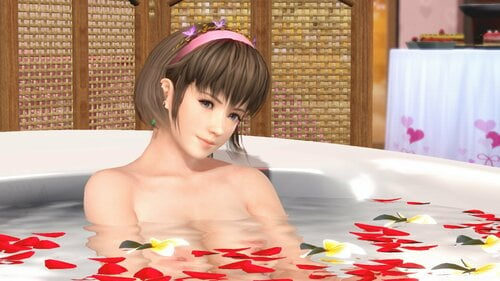
Swimsuit Swapper
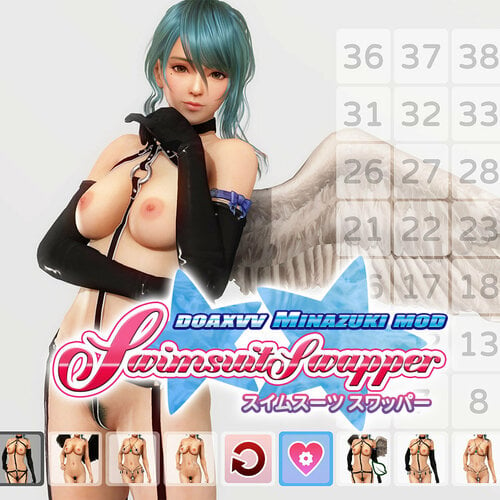
V2.6
Bundled every released SS swimsuit into one pack: SS 001 – 017, with SS 017 available only for Common. The download is split into 3 parts.
Removed pixelated hair shadows from cloth, plastic and leather shaders
Removed the pixelated hair shadow
Added a Thigh Fix Switch (Auto/Off) for the Common body (details below)
Fixed the Black & White issue introduced by the DMM 4.5 Anniv update
Bundled SS 001-010 swimsuits for all 3 body types
Improved performance for SS 005, 006 & 008, with smaller performance gains for every other swimsuit
Check each swimsuit’s own changelog for its other updates
Renamed the folder to accommodate future development
Fixed a body & nails shader issue (ps-cb2) that occurred in certain situations
Added the SS Menu, built with VV ModMaker
Added help information for every suit (Caps Lock)
Fixed Reduce Self Shadow and set it to DISABLED by default
Bundled all of my existing SS swimsuits
Fixed the butt issue on Honoka’s base body
Added Honoka & Marie support
Updated the plastic shader
Added a shortcut to reset all nails on the base body
V1.0
First release
Requirements
3Dfix v2.3 or newer (3Dmigoto)
R Swimsuit Champs Elysees
Hi-Res Body Skin
An updated d3dx.ini
Installation
Extract SwimsuitSwapper(SS) into your Mods folder.
For a tidier setup, I recommend these locations:
SS: ModsCostumesSwimsuitSwapper
New SS swimsuits: ModsCostumesSwimsuitSwapperSwimsuits
SS replaces R Swimsuit Champs Elysees. If you’re not sure which suit that is, take a look at “SwappedSuit.png”.
Some swimsuits already come with SS. If you want to add more later, check the SS thread, my Patreon or my mod site; that’s where I’ll post new swimsuits.
My Patreon: https://www.patreon.com/minazuki (There are no plans for new mod updates, so becoming a patron won’t get you anything)
My mod site: https://minazuki.xyz
Updating from V2.1 or newer
If you used the recommended installation path above, extract SS into ModsCostumes and overwrite all existing files.
If you installed it elsewhere, I recommend deleting all old “SwimsuitSwapper” folders & files first, then extracting SS into ModsCostumes. Otherwise, you’ll need to replace the files manually.
Updating from V2.0 or older
Delete all old “SwimsuitSwapper” folders & files, then extract SS into your Mods folder.
SS Shortcuts
Ctrl + 1 or Ctrl + 2 = Enable variation switching (required before using any shortcuts)
Ctrl + ← = Previous swimsuit (requires swapsuitid to be set in SS.*****.Settings.ini)
Ctrl + → = Next swimsuit (requires swapsuitid to be set in SS.*****.Settings.ini)
Ctrl + ↓ = Jump straight to Base Body
Ctrl + ↑ = Keep Parts (explained below)
Ctrl + Delete = Release all kept parts (resets everything you’ve kept)
Ctrl + Shift + T = Toggle Thigh Fix (Common only)
Ctrl + Shift + S = Self Shadow Control
Shift + ↓ = Temporarily disable all swapping except kept parts
Tab = Show/Hide SS Menu
Right Click/Shift = Select an SS Menu item
Caps Lock = Show/Hide shortcut help
Using the SS Menu
The SS Menu opens automatically when you enable variation switching with Ctrl + 1 or Ctrl + 2.
Press Tab to hide it.
Right Click or press Shift to select an item.
The Reset button only clears kept parts and returns you to the base body.
To reset the variation of your current suit, try Preset 0 (P + 0).
You’ll need to update the SS Menu to use my new mods.
The SS Menu update is available on my Patreon.
Patrons Only version*: https://www.patreon.com/posts/62236279
Public version: https://www.patreon.com/posts/63709995
*The Patrons Only version supports my WIP & Early Access mods.
SS Swimsuit: 000_.Base Body
SS comes with a base body mod included by default.
Leave it unedited, since some other SS Swimsuit mods depend on it.
There are currently 3 body types in the base body mod: Hi-Res Body, No Pokies Hi-Res Body and Puffy Nipples Body.
Alt + ← = Previous body type
Alt + → = Next body type
Shift + X = Cycle Nails Variation
Ctrl + X = Cycle Nails Variation 2
Alt + X = Reset All Nails (show every nail)
P + 0 = Reset All (body type & nails)
Using Keep Parts
Press Ctrl + ↑ to keep suit & body parts.
Kept parts turn red so you can see what’s being retained.
First press = Keep only suit parts
Second press = Keep only body parts
Third press = Keep both suit and body parts
Fourth press = Release the parts
To release every kept part at once, press Ctrl + Delete.
How the Thigh Fix Switch Works
Thigh Fix adds vertices to the thighs to prevent body clipping.
Before SS 2.5, it was always applied to the Common body by default.
The downside was an awkward look from the side when the legs bent.
It now uses “Auto”, applying the fix only when needed.
You can also force it off with Ctrl + Shift + T.
On the Honoka body, Thigh Fix applies when needed and cannot be turned off. It looks reasonable from the side even with bent legs.
The Marie body doesn’t need Thigh Fix at all.
How Self Shadow Control Works
All SS meshes are swapped from a double-sided alpha mesh.
The game renders some odd shadows on that mesh, so I made shader regexes to adjust them.
My recommendation is to enable “Reduce Self Shadow.ini” in the ShaderRegexes folder.
This gives those alpha meshes the correct shadows.
It works in most scenes, but in a few it causes the head (hair) shadow to differ from the body (suit) shadow.
Alternatively, use “Enable Self Shadow Control.ini” from the ShaderRegexes folder.
This reduces the odd shadows by adjusting shadow depth. Lower settings make the shadows less accurate.
Press Ctrl + Shift + S to cycle through High, Middle and Low. High is the default.
The previews below show the differences.
Reduced + High (the head shadow issue only occurs in a few scenes)
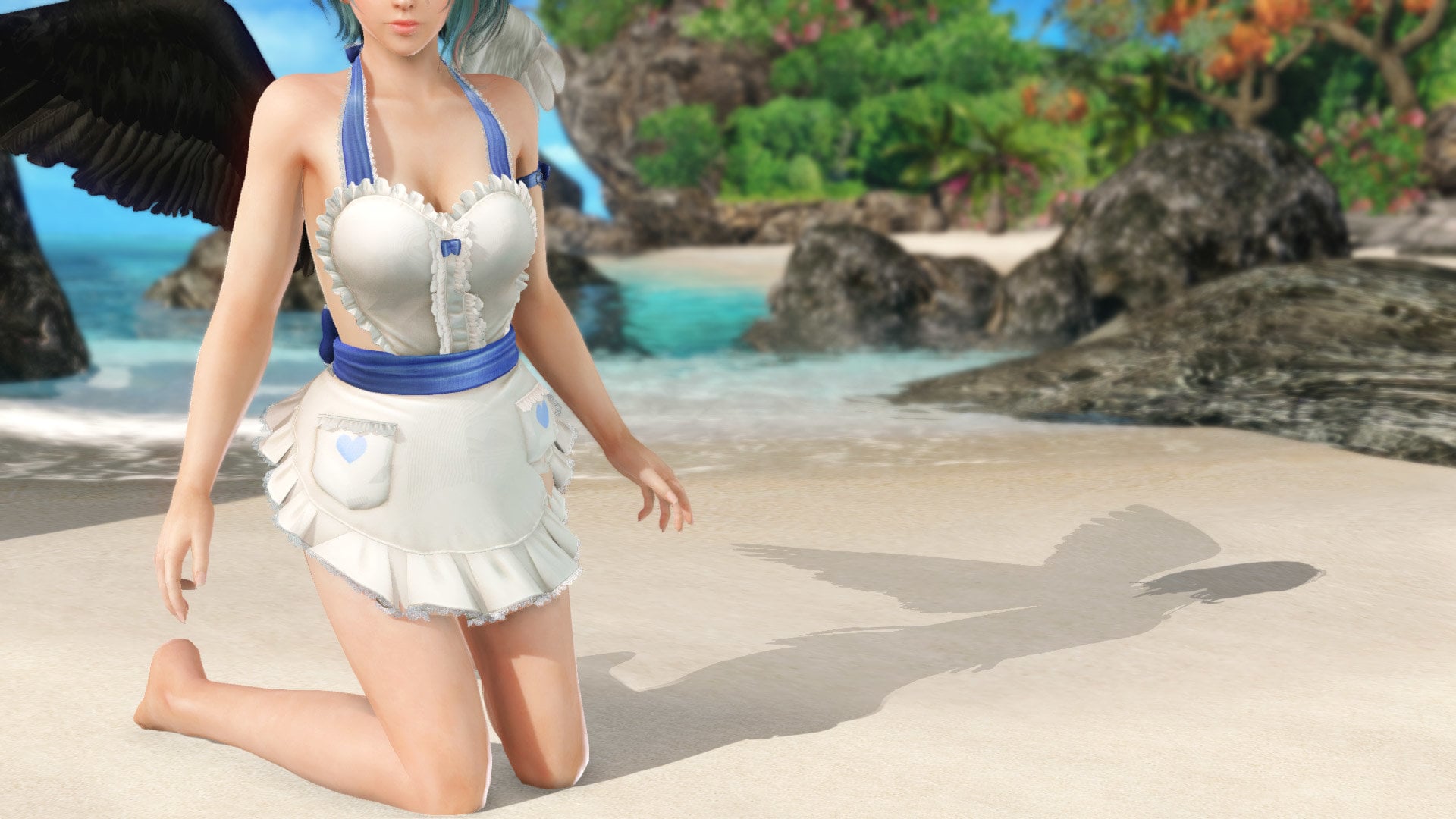
High
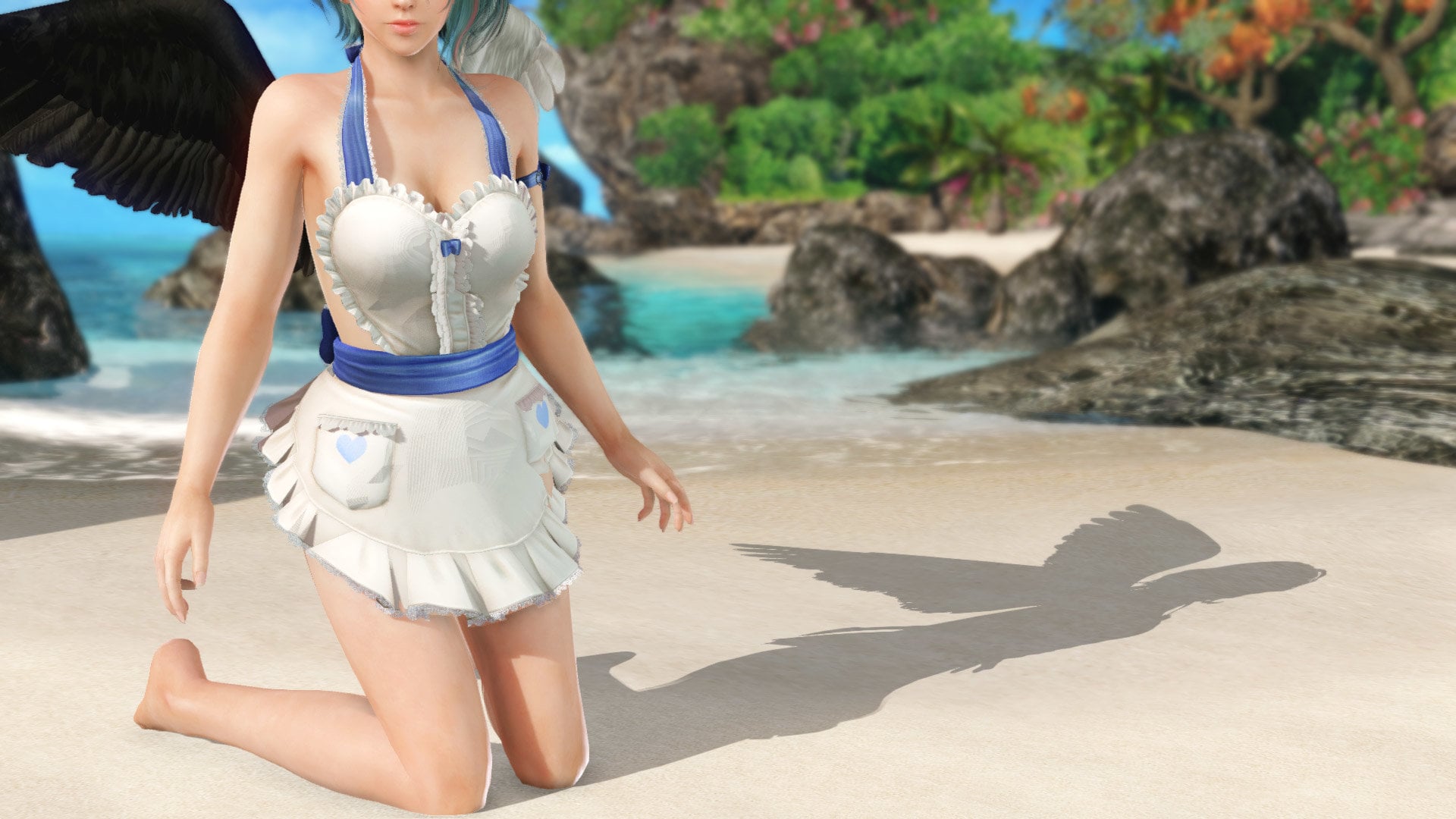
Middle
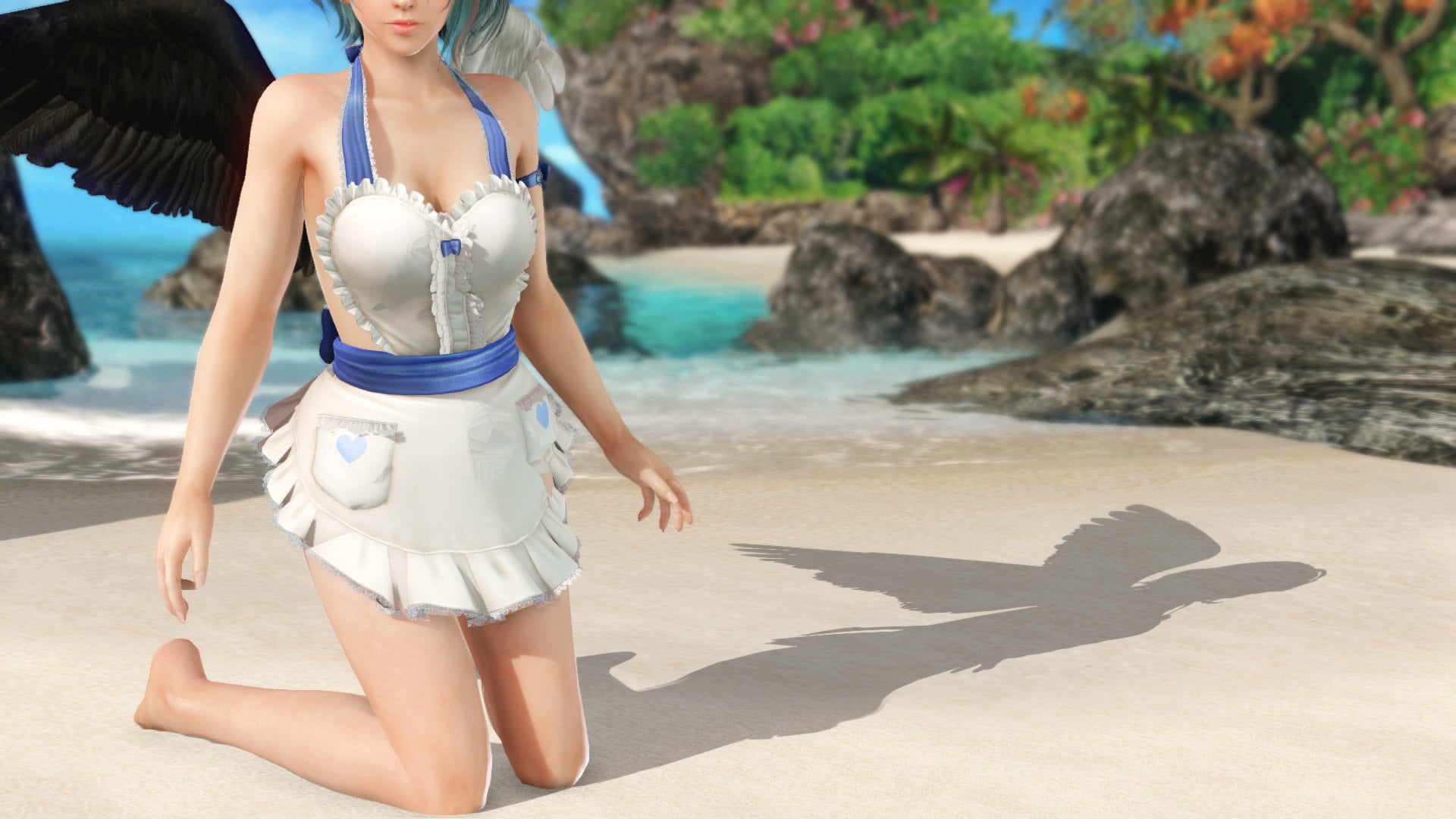
Low
Change introduced in 2.0
“Reduce Self Shadow.ini” affects every mesh using the same shader, even when no SS suit is on screen. Because of that, I’ve made it DISABLED by default.
If you’d rather remove the odd shadows, enable it by deleting DISABLED from the ini filename.
Body Type Groups
Common = Kasumi, Ayane, Nyotengu, Kokoro, Hitomi, Momiji, Helena, Misaki, Tamaki, Leifang, Fiona, Monica, Patty, Nanami, Koharu, Tina
Honoka = Honoka, Luna, Sayuri, Tsukushi, Elise, Shandy
Marie = Marie, Nagisa, Kanna, Lobelia
Mixing SS Swimsuits
There are two ways to do this:
1. Keep the suit parts you want, then press Ctrl + ↓ to jump to the base body.
2. Keep the suit parts you want, then keep one set of body parts (or suit + body parts) and press Shift + ↓ to hide everything else.
Mixing SS swimsuits can be a little fiddly, but it’s a bonus feature.
SS is mainly meant to let you change swimsuit variations with shortcuts, just like my regular swimsuit mods.
Change introduced in 2.0
You can now mix SS swimsuits through Mixed Preset in the SS Menu. I’ll keep adding presets when I find good mix & match combinations.
Honoka & Marie currently have only one SS swimsuit each, so their Mixed Preset lists are empty.
Adding New Swimsuits
Once you’ve downloaded a new SS swimsuit, extract it into your Mods folder. I recommend ModsCostumesSwimsuitSwapperSwimsuits.
Update the SS Menu as well.
Then press F10 in-game, followed by Ctrl+1/2 to enable suit variations. The new swimsuit icon should appear in the SS Menu.
If you prefer switching swimsuits with the keyboard (Ctrl + ←&→), or want to add a legacy SS swimsuit made by Pachino,
you can still edit SS.*****.Settings.ini in the SS mod folder. Replace ***** with the body type name: Common, Honoka or Marie.
For example, say you’ve downloaded a new Common SS swimsuit with a swapsuitid of 7.
Change this:
; Set new swimsuit ID here
$sscommonswapsuitid =  1, 2, 3, 4, 5, 6, 0
To this:
; Set new swimsuit ID here
$sscommonswapsuitid =  1, 2, 3, 4, 5, 6, 7, 0
Q&A
Q. How do I update an SS Swimsuit?
A. I may revisit existing SS swimsuits to add color variations, fix bugs and so on.
Usually, updating just means overwriting all the current files.
Some updates need extra steps, so check the SS Swimsuit release notes for any special instructions.
Q. How do I update the SS Menu & Mixed Preset?
A. Overwrite all of the existing files with the updated ones.
Q. Can I add my own Mixed Preset?
A. At the moment, I’m the only one managing Mixed Preset. If you’ve found a mix & match combination you really like, you can ask me to put it in the SS Menu.
If I like the result too, I’ll add it as a preset.
Q. Why is my SS swimsuit turning red?
A. Red means you have suit parts kept. This happens when you choose a Mixed Preset and then switch to another SS swimsuit.
Use the Reset button in the SS Menu to clear every kept part.
Q. The girl’s body has disappeared. How do I bring it back?
A. You might have entered an incorrect swapsuitid in SS.*****.Settings.ini, or accidentally pressed Shift + ↓ and hidden the body.
Try the Reset button in the SS Menu to restore it.
If the body still disappears when you select other swimsuits in the SS Menu, some SS swimsuits may be missing from your Mods folder.
Due to the limits of my coding skills, the SS Menu lists all SS swimsuits, including ones you haven’t downloaded & installed.
I recommend downloading & installing all of my SS swimsuits. Otherwise, selecting a suit you don’t have installed will leave you with a missing body.
Q. I get “WARNING: Unrecognised entry: $sscommon##keep = 0” when starting the game or pressing F10.
A. You’ve updated the SS Menu without installing a new SS Swimsuit that the menu now supports.
Due to the limits of my coding skills, the SS Menu retains entries for all SS swimsuits, even those you haven’t downloaded & installed.
To avoid this warning, I recommend downloading & installing all of my SS swimsuits.
Q. Why doesn’t the help text change when I switch SS swimsuits?
A. That’s a limitation of the toggle run CommandList. Press Caps Lock to hide the help, then press it again to display the updated information.
Q. The help text won’t leave the screen, even when I press Caps Lock. How do I hide it?
A. Variation switching has to be enabled before any shortcuts will work. Press Ctrl+1/2 first, then use Caps Lock to hide the help.
Legacy Video Preview
Special Thanks (a to z)
ausgeek — 3Dmigoto
avenger54 — owner room support (_id) and VV ModMaker
HI-METAL — Hi-Res Skin
KuroKaze78 — mod_active, pose caching, shader regexes and more
mono1214 — Hi-Res Body
Pachino — additional SS swimsuits
string072 — Puffy Nipples
…and thanks to all my patrons
SS Swimsuit List