DOAXVV Base Costume + 3D Vision Mod Support
Costume Mods
You’ll need this base mod to use the costume mods available for this game.
NVIDIA 3D Vision support is included too. To keep this mirror shorter, I’ve left out the 3D Vision-specific setup instructions. If you use 3D Vision, follow the instructions here instead.
On its own, this mod doesn’t alter any costumes. Grab costume mod packs from elsewhere and extract them into the Mods directory. No restart is needed when you add a mod: press F10 in game to load it. Some packs come with optional components that start out disabled. Look for files or folders named “DISABLED something” and remove “DISABLED” from the name to turn them on. Most newer mods also have keyboard shortcuts for customising them while you play; check each mod’s instructions for the available options.
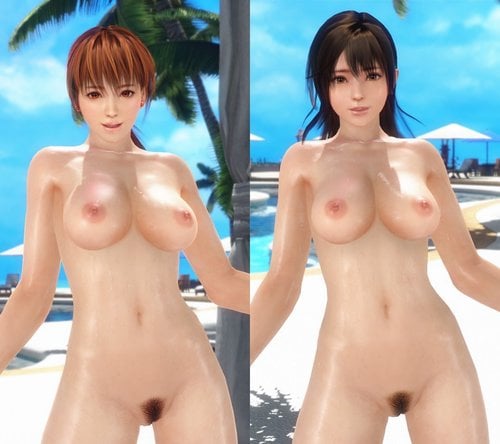
Not sure what to try first? The all in two mod pack is a good starting point. It’s easy to install, turns the white lace bikini into a nude outfit for most characters (except newly released characters it hasn’t been updated for yet), improves the gacha scene, and bundles mods for a few other costumes by knight77 and me. It uses knight77’s textures and models. If that style suits you, you’ll find more in his thread.
Many other mods need HI-METAL’s skin textures installed. Seeing large, odd-looking circles where nipples should be? Those textures are what you’re missing. They’re high quality, with several variations for different preferences, though getting them set up correctly can take a little more work. Minazuki’s thread has plenty of high-quality, extensively customisable mods that use them.
If you want more advanced features, including mix-and-match options, take a look at KuroKaze78’s Costume Customizer and Minazuki’s Swimsuit Swapper. Browse this forum for everything else, and keep an eye on this thread in particular for news.
A Mod Manager is now available, and I strongly recommend it for making mods easier to manage. It lets you enable or disable mods with a single click, check which outfit a mod changes, rename or move mod folders, and add your own previews and descriptions. You can also check for possible mod conflicts, manage Costume Customizer packs, and download and install mods from an online server.
Want to have a go at making your own mods and learn how it works? This video is the essential starting point.
Installation
-
Unpack the zip file’s contents into the game directory.
-
Open settings in the launcher, not in the game (it’s the second button from the top). Set every option to the left-most choice; the lower-quality options are known not to work.
-
Add whichever other mod packs you want to use.
Key Bindings
- F1: Display help
- F2: Switch costume mods on/off
- Shift+F2: Cycle through costume mod shadow modes (on/off/original)
- Mouse back button: Show/hide the HUD
- Ctrl+F9: Open the 3DMigoto performance monitor
- F10: Reload every mod
- Ctrl+Alt+F10: Reload every mod and restore the default configuration
Update v1.2
- Resolved a shadow glitch
- This fix now serves as the foundation for third-party costume mods
Update v1.4
- Updated 3DMigoto with major additions, including conditional logic and a performance monitor
- Auto-convergence no longer incurs a performance cost with 3D Vision disabled
- Added keys to toggle costume mods and shadows; try the different shadow modes if you’re having performance trouble
- Added built-in help, accessible with F1
- Enabled costume mods for previously missing costume and shadow shaders
- Enabled texture replacement mods for costumes and fingernails
- Fixed situations where costume mods could lose a shadow
- The HUD now stays visible during burst mode
Update v1.5
- Fixed legs disappearing in certain costume mods
- Using F2/Shift+F2 now displays the status in the overlay
Update v1.6
- Repaired lighting & auto-convergence again after a game update broke them
Update v1.7
- Adjusted the costume mod and 3D Vision ripple fix to work with DOAXVV’s December 6th update
- Updated to 3DMigoto 1.3.12, adding vertex buffer hunting keys, clipboard marking mode, and more
- 3D Vision: Specular reflections on certain materials now render at their correct depth rather than at surface depth. This does not apply to all materials.
- 3D Vision: Adjusted auto-convergence settings to make some cutscenes more comfortable to watch.
Hotfix v1.8
- Corrected the pink fingernail issue
- Added one more missing costume shader
Update v1.9
- Updated 3DMigoto to 1.3.14 for more advanced modding support
- Costume & shadow settings are now saved automatically on exit or reload. Press Ctrl+Alt+F10 to restore defaults and reload.
- Key bindings no longer run when you’ve alt+tabbed away from the game.
- Frame analysis now offers several switchable “profiles”. The default dumps only skin and costumes to speed up blender imports. In hunting mode, press Ctrl+F8 to toggle hair and fingernail dumping, or switch to dumping UI textures instead.
- Frame analysis no longer dumps modded meshes, making blender imports a bit simpler when costume mods are enabled. To reimport an edited mesh, import it straight from the mod rather than from a frame analysis dump.
- Updated auto-convergence: popout bias now saves automatically to d3dx_user.ini, and the auto-convergence HUD also displays the current convergence value. Several under-the-hood changes mean it may behave a little differently than before.
Update v2.0
- Updated 3DMigoto to 1.3.15
- Reloading with F10 is now much quicker
- Leftover settings from removed mods are cleared on the next F10 reload or game exit; you’ll still see the warnings once
- Fixed a crash caused by displaying news with certain mods active
- Opening the news no longer resets certain settings
- Resolved a ReShade compatibility problem. If the two wouldn’t work together for you before, please try again and report your results
- Fixed a crash that could happen under certain conditions on non-NVIDIA systems
Update v2.1
- Updated 3DMigoto to 1.3.16
- Resolved a compatibility problem with newer ReShade versions
- Icon depth now adjusts automatically in the pool hopping minigame (3D Vision)
Update v2.2
- Adjusted the costume mod for compatibility with the DMM version’s 2019-04-25 update
Update v2.3
A special thanks to KuroKaze78 for tracking down the updated shader hashes 
- Updated costume mod and 3D Vision support for the DMM 2020-06-11 update
-
Bundled KuroKaze78’s d3dx.ini updates:
- Added more shaders to d3dx.ini, reducing the number of mods that need manual additions to this file
- Hair and fingernail mods are now supported by default
- Added environment mod support
- desktop.ini files are now skipped
- Added _id for mods that require it
- The frame analysis UI profile now supports dumping full-size (1920×1080) decobromide images
With the extra shaders now part of the base d3dx.ini, certain mods may trigger conflict warnings. These are mostly harmless. Usually, you can clear them by updating the mods named in the warning, or by editing those mods’ ini files and removing the indicated ShaderOverride section.