Costume Customizer Framework Mod (v2.5.2 – 2/28/2023)
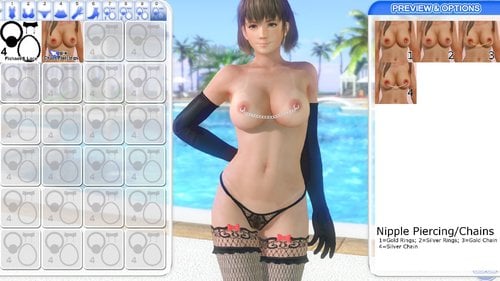
CostumeCustomizer Mod for DOAXVV
What This Mod Does
Mix and match suit pieces from the CostumeCustomizer mod-packs you have installed, using a 2D overlay menu to put your outfit together. The mod replaces the Takao R and Dewa SR suits. This download contains only the framework and menu; the costumes themselves come from CostumeCustomizer_ModPacks. Important: The manual install/update process changed with v2.0+. Check the updated steps below.
Patch Options:
-
Simple Variation
- Use this version if all or most mod-pack clothing stays black in CostumeCustomizer. That bug affects certain system configurations, including on-board/AMD graphics. This variation disables custom ps-cb2 support, but all other features still work normally.
-
1-Page Variation
- This version limits support to 24 mod-packs to lighten the load when starting the game or reloading mods. It’s mainly intended for mod-pack developers who make frequent edits and need to reload in-game often to check their changes.
The discussion thread is here:
Suits This Mod Replaces:
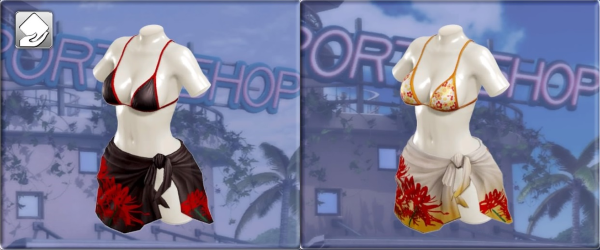
Takao R suit on the left; Dewa SR suit on the right.
Installing with Venus Vacation Mod Manager
Save vvmm_CostumeCustomizer_v#.#.#.zip in your _zips folder, then install it through Mod Manager.
Installing Manually
Step 1:
Complete the 3DMigoto mod setup for DOAXVV first, if you haven’t done so already. Important: Your DOAXVV game directory’s entire path must use only simple English characters (printable ASCII: A-Z, a-z, 0-9, and the usual special characters allowed in paths). Characters outside that set will cause problems with both 3DMigoto and CostumeCustomizer.
Step 2:
Replace the d3dx.ini supplied with the 3DMigoto base mod v1.8 with the latest version available here. Alternatively, see the notes below for the minimum edits required in d3dx.ini. With CostumeCustomizer v1.3.2 and DOAXVV base mod v1.9+, you no longer need to edit d3dx.ini to use all CostumeCustomizer features. Still, keep your d3dx.ini current so it includes the relevant shader hashes, which change frequently.
FOLLOW THESE STEPS ONLY for CostumeCustomizer versions older than 1.3.2
Manual edits for keeping your existing d3dx.ini instead of replacing it
1. Open the d3dx.ini file in the root of your DOAX-VenusVacation folder.
2. Find this section: [CommandListClothes]
3. Insert a new line directly below the section header containing: w7=1
It should look like this:
…
[CommandListClothes]
w7=1
…
4. Find this section: [CommandListSkin]
5. Insert a new line directly below the section header containing: w7=2
6. Find this section: [CommandListFingernailsEyes]
7. Insert a new line directly below the section header containing: w7=3
8. Find this section: [CommandListHair]
9. Insert a new line directly below the section header containing: w7=4
10. Find this section: [CommandListShadowMap]
11. Insert a new line directly below the section header containing: w7=5
12. Enable fingernail mesh replacements by adding the orange text shown below to the [CommandListFingernailsEyes] section.
[CommandListFingernailsEyes]
w7=3
; Dump out eye & fingernail textures:
dump = deferred_ctx_accurate share_dupes ps-t0 mono dds
dump = deferred_ctx_accurate share_dupes ps-t1 mono dds
; Dump out fingernail & eye mesh & pose:
analyse_options = deferred_ctx_accurate share_dupes dump_vb txt buf
dump = deferred_ctx_accurate vs-cb2 txt buf
if z
; Enable fingernail texture replacements:
checktextureoverride = ps-t0
; Enable mesh replacement
checktextureoverride = vb0
checktextureoverride = ib
endif
13. Save your changes to d3dx.ini.
Step 3:
Disable or remove any other mods replacing the same suits, including my original ReplaceBlackPareo_wNudeStraps mod.
Step 4:
Grab the latest release of the CostumeCustomizer mod:
Step 5:
Unpack CostumeCustomizer_v#.#.zip into the root of your DOAX-VenusVacation game folder.
To check the extraction, make sure this ini file is at the following location:
DOAX-VenusVaction/Mods/Costumes/CostumeCustomizer/Common_Default.ini
Updating an existing install?
Updating from v1.0 – v1.8
Unpack CostumeCustomizer_PATCH_v#.# (for v1.0-v1.8).zip into your root DOAX-VenusVacation game folder and allow overwrites. The patch includes everything except the 01-24 Slot folders, leaving your installed ModPacks untouched.
Updating from v1.9 or Later
Unpack CostumeCustomizer_PATCH_v#.# (for v1.9+).zip into your root DOAX-VenusVacation game folder and allow overwrites. The patch leaves out the 01-96 Slot folders so your installed ModPacks stay as they are.
Step 6 (Added in v2.0?
Open Mods/Costumes/CostumeCustomizer and run update.bat.
Step 7:
Get one of the skin texture sets originally made for the Square Bikini Nude mod. For example: HI-METAL’s V3 release)
Here are some compatible skin textures:
Step 8:
Add your Mod Packs.
Installing Mod Packs
I plan to add a quick way to manage mods and generate user presets later. For now, follow these steps to install mod packs manually.
Step 1:
Download whichever mod packs you want from this topic.
For example: CostumeCustomizer_NudeStrapsSet1_v1.0.zip
Step 2:
Unpack the mod pack inside your CostumeCustomizer folder. The resulting folder layout should look like this:
Example: DOAX-VenusVaction/Mods/Costumes/CostumeCustomizer/CostumeCustomizer_NudeStrapsSet1_v1.0
Make sure the ini files are in these locations:
DOAX-VenusVaction/Mods/Costumes/CostumeCustomizer/CostumeCustomizer_NudeStrapsSet1_v1.0/Common.ini
DOAX-VenusVaction/Mods/Costumes/CostumeCustomizer/CostumeCustomizer_NudeStrapsSet1_v1.0/Marie.ini
DOAX-VenusVaction/Mods/Costumes/CostumeCustomizer/CostumeCustomizer_NudeStrapsSet1_v1.0/Honoka.ini
Step 3:
Choose an unused ModPack slot and disable or delete it.
CostumeCustomizer currently has 96 mod pack slots, represented by folders numbered 01 – 96.
For example, delete slot folder 01 if it isn’t in use.
Step 4:
Rename the ModPack folder to the slot number you just disabled or deleted.
For example:
Before: DOAX-VenusVaction/Mods/Costumes/CostumeCustomizer/CostumeCustomizer_NudeStrapsSet1_v1.0
After: DOAX-VenusVaction/Mods/Costumes/CostumeCustomizer/01
Step 5 (Added in v2.0):
Go to Mods/Costumes/CostumeCustomizer and run update.bat.
Step 6:
Launch the game. If it’s already running, press F10 to reload the mods.
![[DOA5LR] H-LOD nude mod (curvy body) — preview](https://f95zoneto.com/wp-content/uploads/2016/01/sm-2627-thumb-c5ce2bbc570570e81d05aaff2396e7a2-allgirls.jpg)